Gallery Box Plugin for WordPress: Setup Guide and Honest Review (2026)
Gallery Box is a free WordPress plugin for image, portfolio and video galleries with a built-in lightbox. Is it still worth installing in 2026? We installed version 1.7.40 on a clean WordPress 7.1.4 site on 29 October 2026, built a gallery, put it on a page, and measured what it adds to every page of the site. We also read the code, and there's one thing in it you should know about before you click Activate.
- Tested: Gallery Box 1.7.40 on WordPress 7.1.4
- 1,000+ active installs, rated 4.1/5 (18 ratings)
- Last updated June 2026, by Noor Alam
On this page
What Gallery Box does
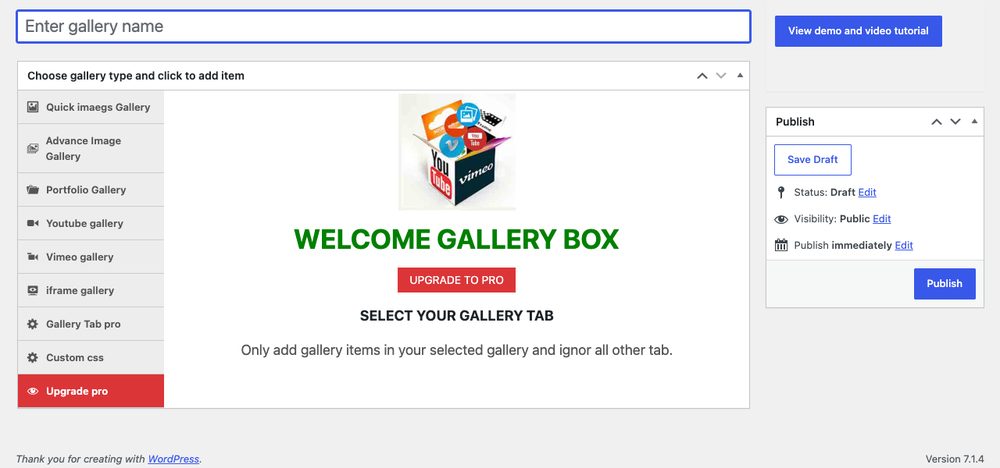
What do you actually get? A Gallery Box menu in wp-admin where each gallery is its own entry. You pick a gallery type, add images or video links, adjust a few settings, and drop the gallery into any page with a shortcode. There's also an Elementor widget if you build with Elementor. The free version offers seven gallery types:
- Quick images gallery: pick images, done. This is the one most people need.
- Advance image gallery: images with titles, descriptions and links.
- Portfolio gallery: filterable items with categories (it uses Isotope for the filtering).
- YouTube and Vimeo galleries from video links.
- iframe gallery for embedded pages.
- Gallery Tab, marked Pro.
How to create a gallery, step by step
- Install it from Plugins → Add Plugin (search "Gallery Box") and activate. Our guide on installing from the WordPress directory works the same way for plugins.
- Go to Gallery Box → Add New gallery and give the gallery a name.
- Click Quick imaegs Gallery (yes, that's the plugin's own spelling) and add images with Add or Upload Files.
- Open Quick gallery settings to choose the layout (masonry by default), columns, image size, margin and lightbox style.
- Publish. The gallery list then shows a shortcode such as
[gallerybox id="29"]. - Paste that shortcode into a Shortcode block on any page or post.
There's nothing confusing once you've found the right tab. The only snag: the editor shows every gallery type's fields in one place, so it's easy to fill in the wrong tab. The plugin itself warns you to "only add gallery items in your selected gallery".
What visitors see
So how does it look? We used eight of our own test screenshots. With default settings you get a masonry grid with cropped thumbnails; clicking one opens a dark lightbox with arrows and a close button.
What it adds to your pages
This is the part most reviews skip. Does Gallery Box load its files only where a gallery appears? No. We loaded our About page, which has no gallery at all, and Gallery Box still added all of its front-end files:
| Loaded on every page | Files | Size after gzip |
|---|---|---|
| Stylesheets (effects, Font Awesome 4.7, Venobox, Slick, gallery styles, a web font CSS) | 7 | about 15 KB |
| Scripts (Isotope, Slick, Venobox) | 3 | about 24 KB |
| jQuery, which the scripts depend on | 2 | loaded if your theme doesn't already |
All seven stylesheets block the first render. On a page with a gallery, it also loads an 18 KB web font. Is 39 KB a disaster? No, but it's paid on every page of the site, including the ones that will never show a gallery. Our theme speed test found complete themes weighing 27 to 43 KB, so this plugin alone is roughly the size of a whole lightweight theme.
The automatic plugin install
Reading the plugin's main file, we found a block commented "Schedule AI Marketing Expert install 6 hours after activation/update". Here's what it does, in plain terms:
- When you activate Gallery Box, and on later admin page loads, it schedules a WordPress cron job for six hours later.
- That job downloads AI Marketing Expert (by the same author) from WordPress.org, installs it and activates it. There's no prompt.
- Afterwards an admin notice announces the new plugin as "Now active on your site".
- If you delete AI Marketing Expert while Gallery Box is still active, the code clears its flag and schedules the install again.
The plugin's readme doesn't mention any of this. It does say the separate usage-tracking prompt is opt-in, and that matched what we saw: the "Allow / No thanks" notice wasn't pre-accepted. We didn't wait six hours on our test site, so this section describes the code in version 1.7.40, not an install we watched happen. If you already use Gallery Box, check your Plugins screen for AI Marketing Expert.
Do you need it at all?
Just want a simple image gallery? Then probably not. WordPress's own Gallery block lays out images in columns, and since WordPress 6.4 images can use Expand on click, which opens them in a built-in lightbox. That covers the most common reason people install a gallery plugin, without extra scripts on every page.
Gallery Box still makes sense if you want a filterable portfolio grid or YouTube and Vimeo galleries in a few clicks, and you're comfortable with the extra weight and the auto-install. If you go ahead, keep an eye on the Plugins screen. For other plugins we've installed and checked the same way, see our tested plugin list.
A note on this address: gallery and carousel demos for these plugins used to live on wpteamx.com subdomains when the domain belonged to its previous owner. We bought the domain in 2026, we didn't make these plugins, and this page is our own independent test. Our about page has the full history.