Pricing Table for Elementor
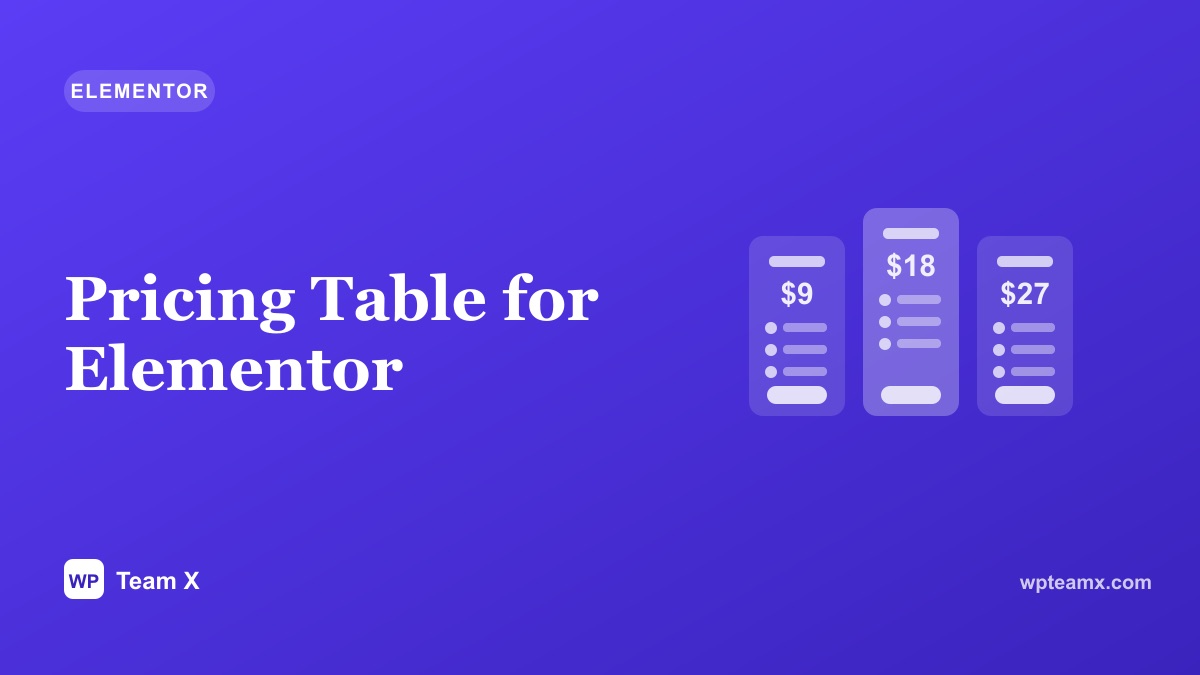
A pricing page has one job: help a visitor pick a plan without friction. A pricing table lays your plans side by side, with features, prices, and a button each, so the choice is obvious. This is the Pricing Table widget from the Magical Products Display add-on for Elementor, how to structure it, how to add it, and how to guide people to the right plan.
- Type Elementor widget
- For Plans and pricing
- Layout Comparison columns
- Best for Helping people choose a plan
Why a pricing table
When plans are described in paragraphs, visitors have to hold three things in their head and compare them. A table does that work for them: features line up in rows, prices sit at the top, and a highlighted column suggests the popular choice. Clear structure lowers the effort of deciding, and a lower-effort decision is a decision more people actually make.
Table vs plain pricing text
| Pricing table | Plain text | |
|---|---|---|
| Comparison | Features line up in rows | Reader compares manually |
| Guidance | Highlight a popular plan | None |
| Action | A button per plan | One generic link |
| Effort to choose | Low | Higher |
How to add a Pricing Table in Elementor
With the Magical Products Display add-on active:
- Activate the add-on and edit your page with Elementor.
- Drag the Pricing Table widget onto the canvas.
- Build the plans: name, price, feature list, and a button each.
- Highlight one plan as recommended so it stands out.
- Style and publish: match brand colors, then check mobile.
Options worth setting
- Plan columns. Name, price, period, feature list, and button per plan.
- Featured plan. Highlight a recommended column with a badge.
- Feature rows. Checkmarks or values that line up across plans.
- Responsive. Columns stack cleanly on mobile.
- Styling. Colors, badges, spacing, and button style in Elementor.
Tips for a pricing table that converts
- Highlight one plan, the one you want most people to pick.
- Order by price low to high, or anchor with the top plan first.
- Keep feature rows aligned, so comparison is effortless.
- Use clear button labels, Start free or Choose Pro, not just Buy.
- Limit to three or four plans, since more choices slow the decision.
See more widgets and themes
Browse the full set of Elementor widgets and WordPress themes in the WP Team X demos.
Open the demos